Getting Started on Recess: Frequently Asked Questions
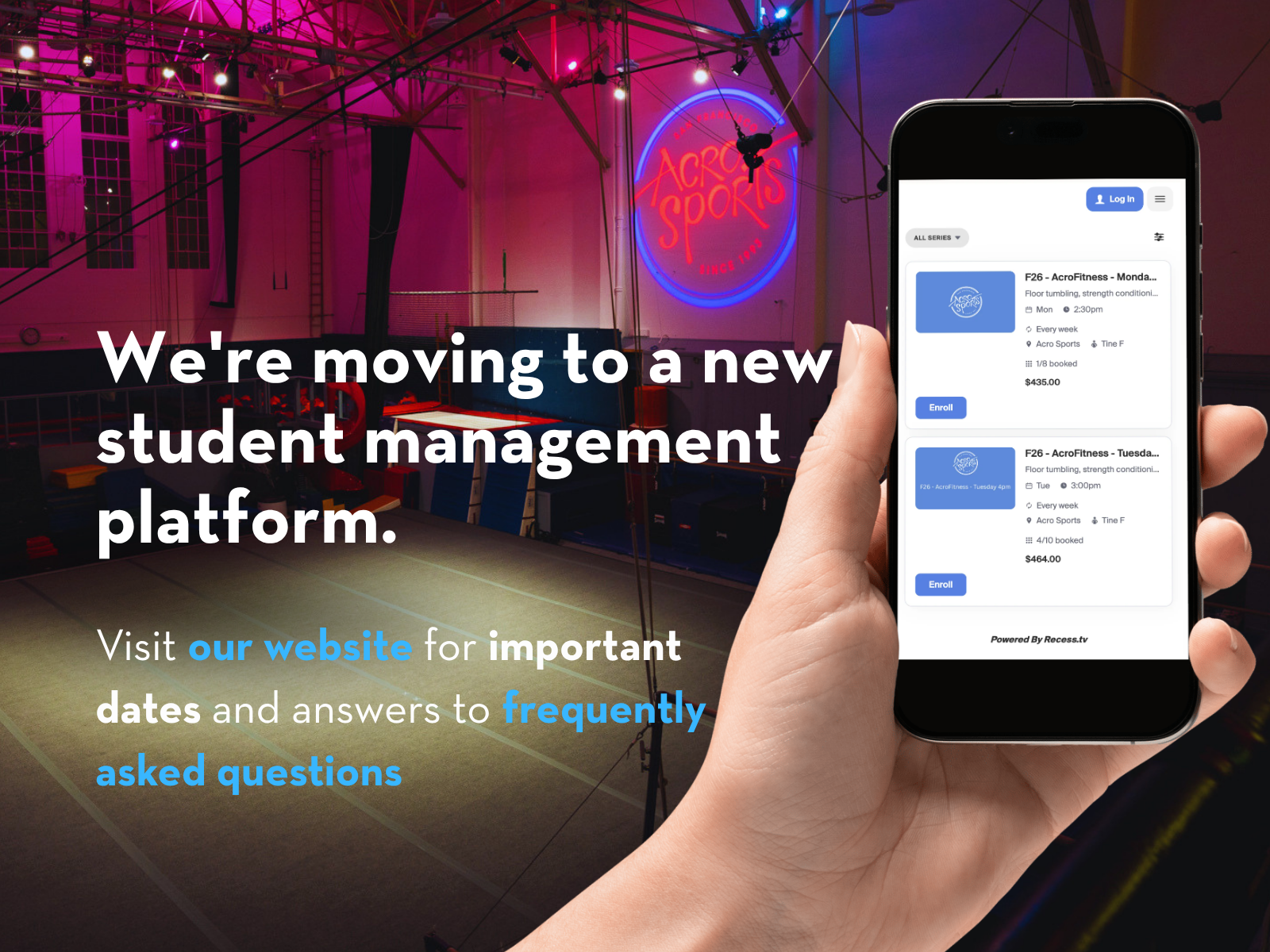
Last month we introduced you to Recess, the new home for classes, camps, packages, and payments here at AcroSports (link here: New software, same AcroSports). Here’s everything you’ll need to get set up and settled in.
This guide covers the questions we hear most: logging in for the first time, adding the app to your phone, getting your family set up, updating your payment info, and registering for classes. It only takes a few minutes, and most of it you’ll only ever do once.
How do I log in for the first time?
Your account and history have all moved over from our old systems, so there’s nothing to rebuild. Here’s how to get in:
- Use the same email address where you’re getting this newsletter.
- Enter it on the login screen. You’ll get a 4-digit code sent to that email.
- Type in the code, and you’re in.
- Head to the Profile tab and tap the people icon to make sure your family is set up correctly.
One heads-up: it’s possible we have your account under a different email, or that your family members aren’t all mapped correctly yet. That’s an easy fix. You can add them yourself or reach out and we’ll sort it out with you.
How do I download the AcroSports app?
Our app is a web app, which means you install it straight from your phone’s browser instead of the App Store or Google Play. It only takes a few taps.
On iPhone:
- Open the link (or scan the QR code we sent you) in Safari.
- Tap the Share button.
- Choose “Add to Home Screen,” then tap Add.
On Android:
- Open the link (or scan the QR code) in Chrome.
- Tap the three-dot menu in the top right.
- Choose “Add to Home Screen” (or “Install App”), then tap Add.
Once the icon lands on your home screen, tap it to open the app and sign in.
What should I expect when I first open the app?
- You’ll land on the Home screen. This is where you’ll manage your family, see upcoming bookings, and more.
- The other tab to know is Profile, where you’ll find your account details and your full history.
- If anything on your profile looks off (address, emergency contact, home location), just reach out and we’ll update it on our end.
Will my whole family be set up in the app?
Yes. Your whole household can live in one Family account, so you can see and manage everyone from one place.
- From your Profile, tap the person icon next to Sign Out. You should see your family listed, assuming they came over from our old system.
- Tap each person’s name to check their relationship, packages, and upcoming bookings.
- Kids without their own email can be added right under your email address.
Missing someone, or seeing a duplicate? Your family may be attached to a different email on our end. Reach out and we’ll get everyone connected correctly.
I forgot my password. How do I reset it?
- On the login screen, enter your email address and tap Sign In.
- Tap “Forgot password?”
- Check your email for a reset code, enter it, and set a new password.
- That’s it. You’ll be able to log in and book classes as usual.
First time logging in and you’d rather use a password than the 4-digit email code? Use “Forgot password?” once to set your initial password.
How does payment work, and how do I update my payment info?
- Open the app, tap your Profile icon, then find “Payment on File” and tap Edit to update your card or link a bank account.
- You can keep more than one payment method on file. If the first one doesn’t go through, the system will try your backup automatically.
- If a payment ever fails (expired card, insufficient funds, that kind of thing), the system retries on its own after 1, 3, and 7 days. No need to scramble.
- If something’s past due, you may see a banner in the app. Updating your card as above clears it.
- Questions about a specific charge? Reach out and we’ll take a look.
How do I register for adult classes?
- Go to the Schedule tab and tap Reserve.
- Buy a drop-in or a membership/package.
- You can also grab packages and memberships anytime from the Packages tab.
How do I register for Fall?
- Once registration opens, you’ll see a Programs tab.
- From there you can browse all the available programs and classes and pick what to enroll in.
- We’ll add a walkthrough video closer to registration.
Still have questions?
That’s everything you need to get going. If you hit a snag or something doesn’t look right, don’t wrestle with it on your own. Reach out to us and we’ll help you sort it. Same AcroSports, same team, just a smoother way to stay connected.
See you in the gym.

